FAQ
Troubleshooting
Why is my rule not working?
If a rule you created isn't triggering as expected, please check the following:
-
Is the extension enabled?: Make sure you have installed the RedirectWeb browser extension and that it is enabled in your browser for the web page you want to redirect from. If you can open the extension's popup like this, it is enabled correctly:
 tip
tip[Safari] For your convenience, we recommend allowing access to all websites. (Just a tip!)
-
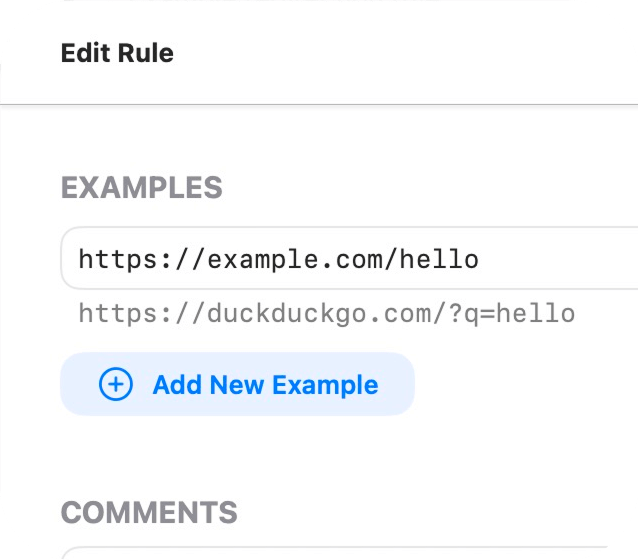
Is your rule configuration correct?: Double-check your redirect rules in the RedirectWeb native app. Ensure that the source URL patterns, target URLs, and any conditions are correctly set up. To check if your rule is valid or not, add an example URL in the Examples section in the Edit Rule screen. If your rule is valid, you will see the expected destination URL under your input, like this:
My purchase is not restored even after tapping "Restore Purchase"
If the Restore Purchase button does not work as expected, please follow these troubleshooting steps:
- Log in to https://reportaproblem.apple.com/ to confirm that the transaction was successfully completed and is listed in your Apple ID history.
- Ensure that the Apple ID currently signed into the App Store app is the same one used for the original purchase.
note
The account signed into your device's Settings app can sometimes differ from the one used in the App Store app. It is the account within the App Store app that must match your purchase history for the restoration to function correctly.
- If you have multiple Apple IDs, please sign out of the App Store and sign back in with the correct account, then try the Restore Purchase button again.
If the accounts match but the restoration still fails, please contact us with a screenshot of your receipt or purchase history. We will investigate the issue further for you.
Extension's popup shows an error
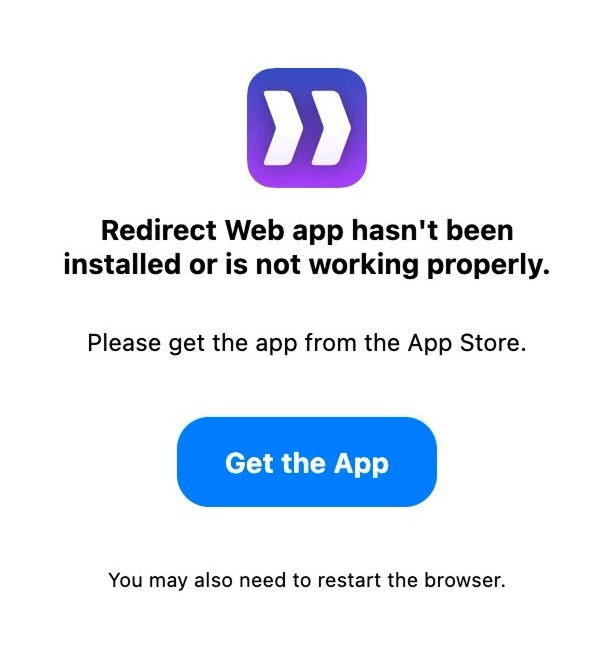
RedirectWeb app hasn't been installed or is not working properly.
Please get the app from the App Store.
If you see the above error when opening the extension popup, it means that the RedirectWeb native app is not installed or not running properly.
Please make sure that you have installed the latest version of RedirectWeb from the App Store.
You may also need to re-launch your browser after installing the native app.
- You need to install RedirectWeb native app to use the browser extension. The extension alone does not work.
- Safari users do not need to install the extension separately, as it is bundled with the native app.
Original page flashes briefly before redirect
This happens when you use the Original type redirect rules. This type provides various advanced features, but it may cause a brief flash of the original page because it may allow the original page to load before performing the redirect.
Open the Edit Rule screen and change the Type to DNR to avoid this issue.
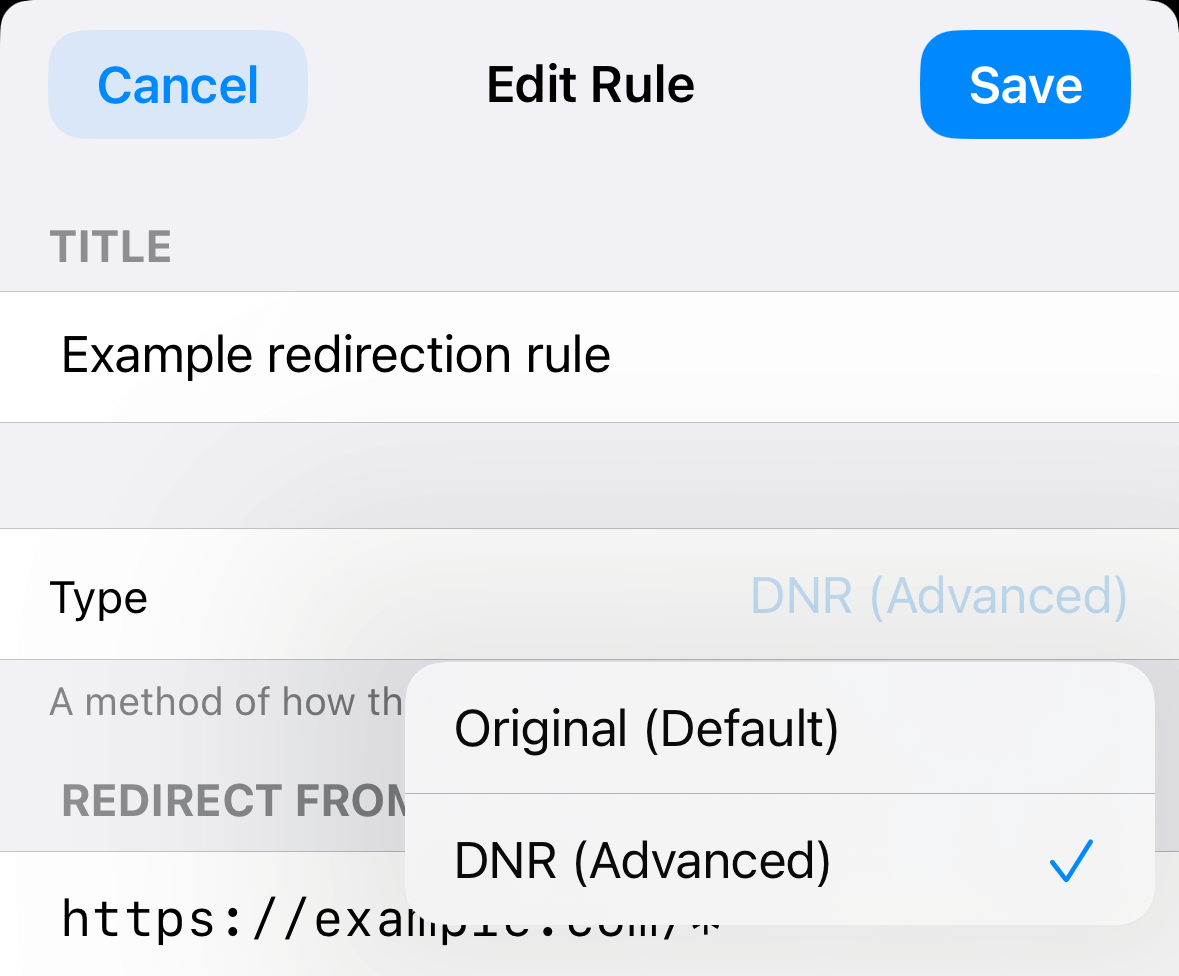
In Firefox, this issue shouldn’t occur even with the Original type, since it relies on the WebRequest API, which prevents the original page from being loaded.
Rule Library
If a rule in the library is updated, will my downloaded copy be updated automatically?
As of now, no. When you get a rule from the library, it is a one-time copy added to your list. Any subsequent updates to the rule in the library will not be automatically applied to your copy. To use the latest version of a rule, please get it from the library again.
Will the library's contents become paid in the future?
No, it's always free. You can also find the source of all the contents here.
Privacy & Security
Why should I allow the extension to read/change my information?
You may see an alert like this when you set up RedirectWeb:
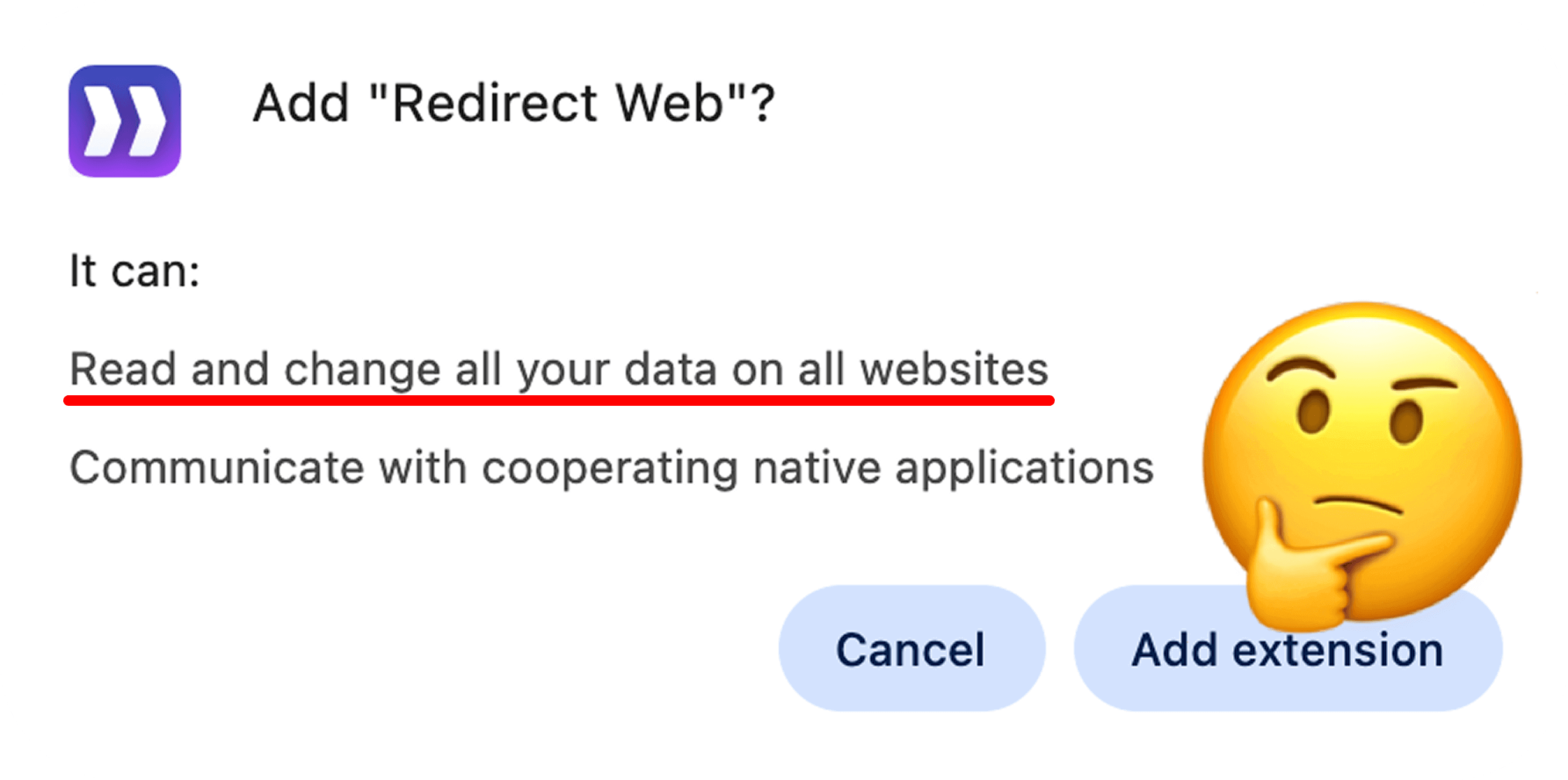
It can: Read and change all your data on all websites
This extension needs your permission to observe page navigation so it can redirect you to your target destination. Your browser displays this alert when the extension requests these permissions. Therefore, if you don’t allow it, the extension cannot function.
Granted permissions will only be used for app functions like redirection, in compliance with the privacy policy.
Why does this extension require a new permission?
You may see this alert in Safari after updating RedirectWeb:
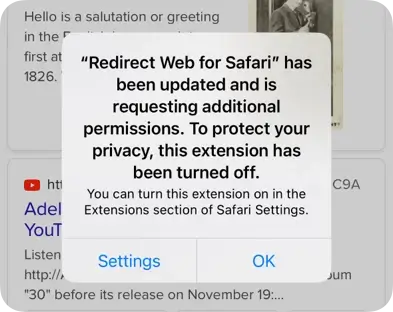
"RedirectWeb" has been updated and is requesting additional permissions. To protect your privacy, this extension has been turned off.
You can turn this extension on in the Extensions section of Safari Settings.
This is due to the declarativeNetRequestWithHostAccess permission required by the DNR type introduced in version 7. Please re-enable the extension. Sorry for the inconvenience.
Does RedirectWeb inject ads or other unrelated content into websites?
No, it does not inject any such content. Only code that is necessary to provide the features described in this documentation and on the App Store page is injected into websites on Safari.
Is there any chance RedirectWeb could ever be sold to someone else?
100% no. Browser extensions wield deep control over your browsing and data, and handing RedirectWeb over to another owner would open the door to privacy violations. We’ve seen extensions change hands and then harvest user data or inject ads without warning. That will never happen here. For more on these risks, see Matt Frisbie’s article "The Ugly Business of Monetizing Browser" and Brian Krebs’ investigation "Is Your Browser Extension a Botnet Backdoor?".
RedirectWeb is founded on trust and responsibility. We consider it our duty to keep your information safe, and we refuse to transfer ownership under any circumstances. RedirectWeb will always remain in our hands, so you can browse with complete confidence.
Platforms & Browsers
Should I still get the app after installing the extension for Chrome, Firefox, or Edge?
Yes. You must download the RedirectWeb app from the App Store regardless of which browser you use. You can install the extension from your browser’s extension store, but the app is required to manage your rules, purchase history, and other settings across devices via iCloud.
Do I need a different extension for Chrome, Firefox, or Edge if I use the Pro app?
No. Whether you use the standard RedirectWeb app or RedirectWeb Pro on your Mac, you should install the exact same extension from your browser's respective extension store. The extension will automatically detect and communicate with whichever version of the app you have installed.
Does RedirectWeb work on Windows, Android, Linux, or any other platforms?
Not at this time. RedirectWeb is closely tied to Apple's ecosystem, including iCloud and Universal Purchase. Sorry for the inconvenience.
Plans & Pricing
What is the difference between RedirectWeb and RedirectWeb Pro?
Both versions offer the exact same features and receive updates simultaneously. The only difference is the payment model:
- RedirectWeb: A free app with basic features (limited to 1 active rule), offering an optional In-App Purchase (subscription or one-time payment) to unlock all features, including unlimited rules and iCloud sync.
- RedirectWeb Pro: A paid, fully unlocked app. This version was created specifically to be eligible for Apple Business Manager and Apple School Manager (VPP), allowing organizations to bulk-purchase the app, which is not possible with In-App Purchases. However, anyone who prefers an upfront purchase can buy it!
One-time Purchase, Annual Subscription, or Pro Version: Which is Best?
We recommend either the one-time purchase within the standard RedirectWeb app or buying RedirectWeb Pro, as they offer the same value. The main reason we offer the subscription is to allow you to try all the features through its free trial. Here is the expected use case:
- Subscribe to the annual subscription in the standard RedirectWeb app.
- Immediately cancel the subscription by going to the Settings app, searching for "Subscriptions", selecting RedirectWeb, and tapping "Cancel Subscription". This lets you enjoy the free trial without any commitment.
- Enjoy full access to all features for 7 days.
- If you like the features, opt for the one-time purchase or buy the Pro version.
Of course, there's nothing wrong with continuing with the annual subscription if you prefer!
Further assistance
If you are still experiencing issues after trying the above solutions, please contact us.